[Linux] Windows 10에서 WSL2 및 Ubuntu 설치해서 Linux 사용하기
WSL
WSL(Windows Subsystem for Linux)
▶ docs.microsoft.com/en-us/windows/wsl/
An overview on the Windows Subsystem for Linux
Explore the Windows Subsystem for Linux documentation.
docs.microsoft.com
▶ 윈도우에서 리눅스를 사용하려면 일반적으로 VM Ware나 Virtual Box 같은 가상머신 소프트웨어를 설치하고 리눅스 환경을 생성하지만, 윈도우 10에서는 WSL를 설치해서 리눅스를 사용할 수 있음.
WSL2 및 우분투(Ubuntu) 설치
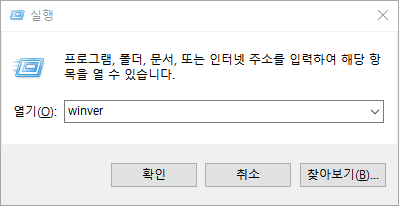
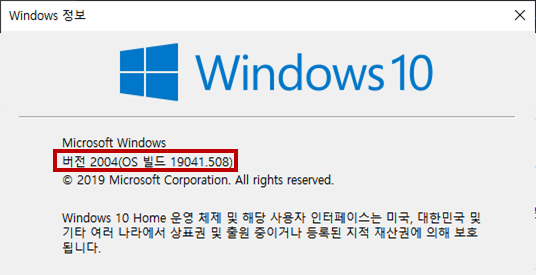
1) 윈도우키 + R → winver 입력 후 확인 → Windows 10 버전 확인
- For x64 systems: Version 1903 or higher, with Build 18362 or higher.
- For ARM64 systems: Version 2004 or higher, with Build 19041 or higher.
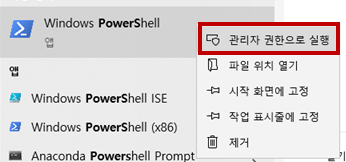
2) 관리자 권한으로 Windows PowerShell 실행
3) [PowerShell] WSL 활성화
dism.exe /online /enable-feature /featurename:Microsoft-Windows-Subsystem-Linux /all /norestart

4) [PowerShell] Virtual Machine Platform 활성화 후 재부팅
dism.exe /online /enable-feature /featurename:VirtualMachinePlatform /all /norestart

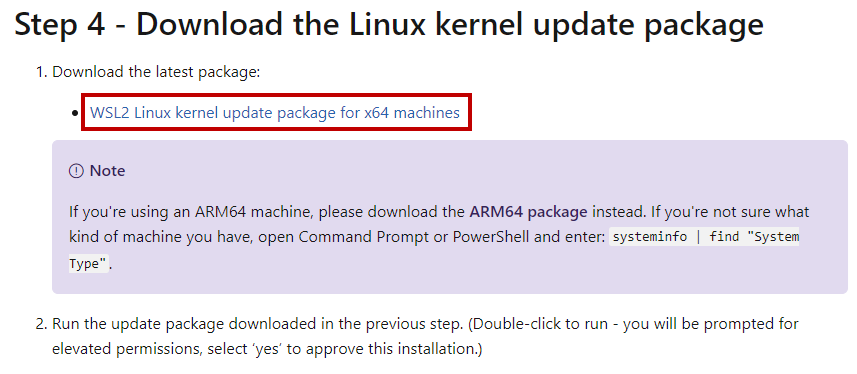
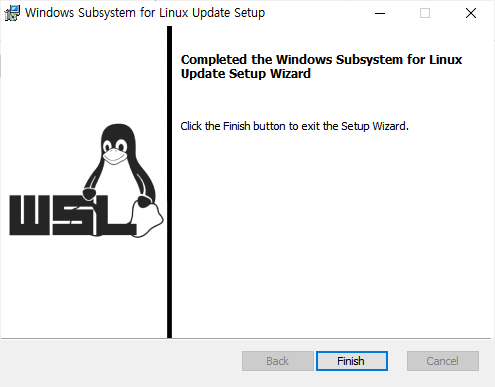
5) 아래 링크에서 리눅스 커널 업데이트 패키지 파일(.msi) 다운로드 및 실행
docs.microsoft.com/en-us/windows/wsl/install-win10
6) [PowerShell] WSL2 버전으로 기본 설정
wsl --set-default-version 2

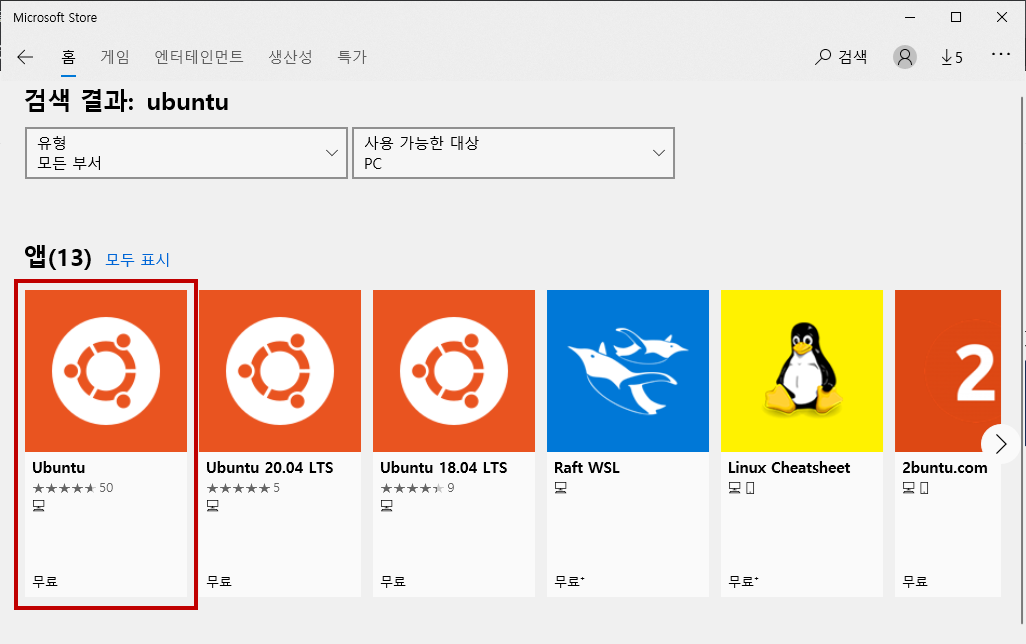
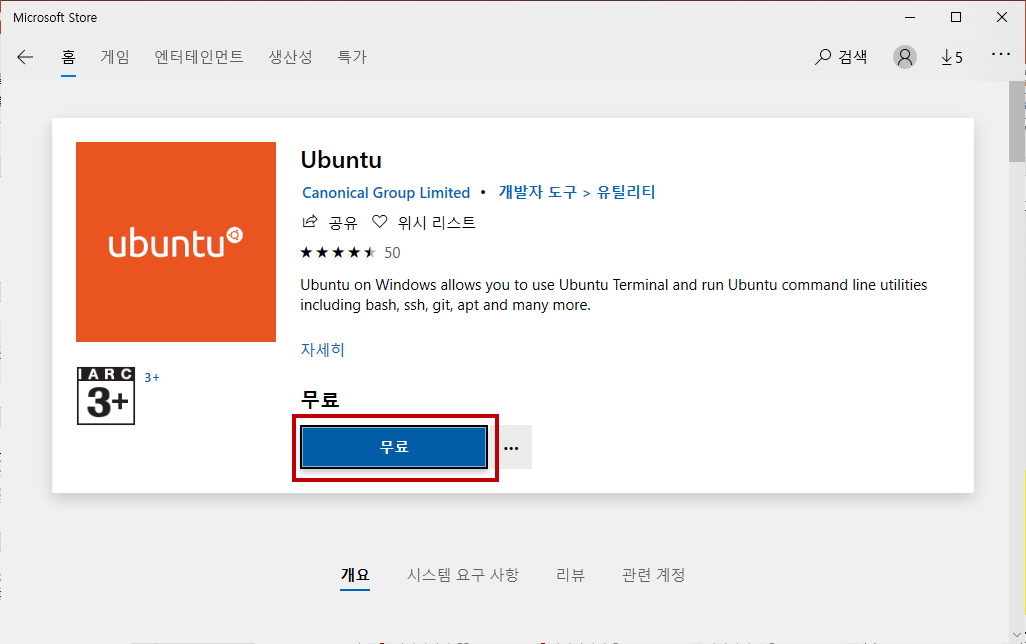
7) Microsoft Store 앱에서 리눅스 배포판 우분투(Ubuntu) 설치 및 실행
8) UNIX 계정 생성 후 리눅스 CLI(Command Line Interface)를 통해 명령 실행
